docs/content/stable/contribute/docs/widgets-and-shortcodes.md
There are a number of display widgets and shortcodes available. All the shortcodes mentioned on this page are defined in /docs/layouts/_shortcodes.
To remove unnecessary headings from ToC.
# For Heading 2
{{</* header Level="2" */>}}Consistency{{</* /header */>}}

# For Heading 3
{{</* header Level="3" */>}}Consistency{{</* /header */>}}

# For Heading 4
{{</* header Level="4" */>}}Consistency{{</* /header */>}}

# For Heading 5
{{</* header Level="5" */>}}Consistency{{</* /header */>}}

# For Heading 6
{{</* header Level="6" */>}}Consistency{{</* /header */>}}
Use the note, tip, and warning shortcodes to create admonition boxes.
{{< tip title="Tip" >}} A tip box gives a hint or other helpful but optional piece of information. {{< /tip >}}
{{</* tip title="Tip" */>}}
A tip box gives a hint or other useful but optional piece of information.
{{</* /tip */>}}
{{< note title="Note" >}}
A note box gives some important information that is often not optional.
{{< /note >}}
{{</* note title="Note" */>}}
This is a note with a [link](https://www.yugabyte.com).
{{</* /note */>}}
{{< warning title="Warning" >}}
A warning box informs the user about a potential issue or something to watch out for.
{{< /warning >}}
{{</* warning title="Warning" */>}}

This is a warning with a [link](https://www.yugabyte.com).

{{</* /warning */>}}
You can add a link to a url with an icon using the link shortcode which takes url as a string argument. Internal and external links will have different icons. You can use the :version variable to expand to all versions.
{{</*link "https://www.google.com"*/>}}{{</*link "../syntax-diagrams"*/>}}{{</*link "/:version/explore"*/>}}Markdown supports tables. By design, Markdown table rows are on a single line, and adding bullets and multi-line code blocks in table cells has to be done using HTML on a single line. To make creating custom tables simpler, use the table shortcode. For example:
{{</*table*/>}}
| col-1 | col-2 |
| ----- | ----- |
<!-- row with bullets and code block -->
|
- 1
- 2
- 3 |
```output
 k | v
---+---
 1 | 2
(1 row)
```|
|
```sql
insert
```|
```sql
update
```|
<!-- row with tip block -->
| {{</*warning title="Beware" */>}} start and end rows with the pipe symbol {{</*/warning*/>}} |
{{</*tip title="Awesome tip" */>}} Use 3 ticks for code blocks with pipe symbols {{</*/tip*/>}} |
{{</*/table*/>}}
The above markdown should render a table as follows:
{{<table>}}
| col-1 | col-2 |
|---|
|
k | v
---+---
1 | 2
(1 row)
```|
|
```sql
insert
```|
```sql
update
```|
<!-- row with tip block -->
| {{< warning title="Beware" >}} start and end rows with the pipe symbol {{</warning>}} |
{{< tip title="Awesome tip" >}} Use 3 ticks for code blocks with pipe symbols {{</tip>}} |
{{</table>}}
## Inline section switcher
An inline section switcher lets you switch between content sections **without a separate URL**. If you want to link to sub-sections inside a switcher, use tabs. This widget looks as follows:
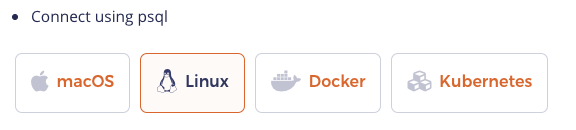
The corresponding code for this widget is as follows. Note that the actual content must be placed in a file with the `.md` extension inside a subdirectory; name the subdirectory such that it can be associated with the switcher title.
```html
<ul class="nav nav-tabs-alt nav-tabs-yb">
<li >
<a href="#macos" class="nav-link active" id="macos-tab" data-bs-toggle="tab"
role="tab" aria-controls="macos" aria-selected="true">
<i class="fa-brands fa-apple" aria-hidden="true"></i>
macOS
</a>
</li>
<li>
<a href="#linux" class="nav-link" id="linux-tab" data-bs-toggle="tab"
role="tab" aria-controls="linux" aria-selected="false">
<i class="fa-brands fa-linux" aria-hidden="true"></i>
Linux
</a>
</li>
<li>
<a href="#docker" class="nav-link" id="docker-tab" data-bs-toggle="tab"
role="tab" aria-controls="docker" aria-selected="false">
<i class="fa-brands fa-docker" aria-hidden="true"></i>
Docker
</a>
</li>
<li >
<a href="#kubernetes" class="nav-link" id="kubernetes-tab" data-bs-toggle="tab"
role="tab" aria-controls="kubernetes" aria-selected="false">
<i class="fa-regular fa-dharmachakra" aria-hidden="true"></i>
Kubernetes
</a>
</li>
</ul>
<div class="tab-content">
<div id="macos" class="tab-pane fade show active" role="tabpanel" aria-labelledby="macos-tab">
{{%/* includeMarkdown "binary/explore-ysql.md" */%}}
</div>
<div id="linux" class="tab-pane fade" role="tabpanel" aria-labelledby="linux-tab">
{{%/* includeMarkdown "binary/explore-ysql.md" */%}}
</div>
<div id="docker" class="tab-pane fade" role="tabpanel" aria-labelledby="docker-tab">
{{%/* includeMarkdown "docker/explore-ysql.md" */%}}
</div>
<div id="kubernetes" class="tab-pane fade" role="tabpanel" aria-labelledby="kubernetes-tab">
{{%/* includeMarkdown "kubernetes/explore-ysql.md" */%}}
</div>
</div>
The includeCode shortcode inserts the contents of a file as plain text, while readfile and includeMarkdown insert the contents of a file and renders it as markdown.
Because it doesn't make its own code block, you can use this shortcode to build a code block from several sources.
The base path is /docs/static/.
This shortcode strips trailing whitespace from the input file.
Call includeCode in a fenced code block:
```sql
{{%/* includeCode file="code-samples/include.sql" */%}}
```
To nest the code block, tell the shortcode how many spaces to indent:
1. To do this thing, use this code:

    ```sql
    {{%/* includeCode file="code-samples/include.sql" spaces=4 */%}}
    ```
To specify highlighting options, do so on the fenced code block. This is a Hugo feature, not part of the shortcode. For example, add a highlight to lines 1 and 7-10:
```sql {hl_lines=[1,"7-10"]}
{{%/* includeCode file="code-samples/include.sql" */%}}
```
{{< tip >}} For more information on highlight options, see the Hugo docs on highlighting in code fences and supported syntax highlighting languages. {{< /tip >}}
<!--### includeFile The `includeFile` shortcode infers the code language from the filename extension (or `output` if there's no extension) and creates its own code block. The base path is `/docs/static/`. This shortcode strips trailing whitespace from the input file. **Call `includeFile`** on a line of its own: ```go {{</* includeFile file="code-samples/include.sql" */>}} ``` **To nest the code block**, indent the shortcode: ```go {{</* includeFile file="code-samples/include.sql" */>}} ``` **To specify a code language** and override the default: ```go {{</* includeFile file="code-samples/include.sql" lang="sql" */>}} ``` **To specify highlighting options**: ```go {{</* includeFile file="code-samples/include.sql" hl_options="hl_lines=1 7-10" */>}} ``` {{< warning title="Fenced blocks are different" >}} CAREFUL! `hl_lines` takes a different form here than when you're specifying it on a fenced block: no comma, no quotes: `hl_options="hl_lines=1 7-10"` For more information on highlight options: <https://gohugo.io/content-management/syntax-highlighting/#highlight-shortcode> {{< /warning >}}-->Inserts the contents of a markdown file, rendered as part of the calling page. We use this primarily for syntax diagrams.
This widget looks as follows:
The corresponding code for this widget is as follows.
{{</* sections/text-with-right-image
  title="Learn through examples"
  description="Microservices need a cloud native relational database that is resilient, scalable, and geo-distributed. YugabyteDB powers your modern applications"
  buttonText="Get started"
  buttonUrl="/stable/quick-start-yugabytedb-managed/"
  imageAlt="Yugabyte cloud"
  imageUrl="/images/homepage/learn-through-examples.svg"
*/>}}
To change image background to transparent, add imageTransparent=true in the code as shown below
{{</* sections/text-with-right-image
  title="Learn through examples"
  description="Microservices need a cloud native relational database that is resilient, scalable, and geo-distributed. YugabyteDB powers your modern applications"
  buttonText="Get started"
  buttonUrl="/stable/quick-start-yugabytedb-managed/"
  imageAlt="Yugabyte cloud"
  imageTransparent=true
  imageUrl="/images/homepage/learn-through-examples.svg"
*/>}}
Note that the way you invoke a shortcode matters. Use angle brackets (< and >) to output plain text, and percent signs (%) to have Hugo render the output as Markdown.
For example, use {{</* slack-invite */>}} to output a bare URL for inclusion in a Markdown-style link, such as [YugabyteDB Community Slack]({{</* slack-invite */>}}): [YugabyteDB Community Slack]({{< slack-invite >}}). Use {{%/* slack-invite */%}} to output a clickable URL: {{% slack-invite %}}.
slack-invite : Inserts the address for community slack invitations.
support-cloud : Inserts the address to open a YugabyteDB Aeon support ticket.
support-general : Inserts the address to open a support ticket with no pre-selected product.
support-platform : Inserts the address to open a YugabyteDB Anywhere support ticket.
yb-version : Inserts the current version of a particular release series. : This shortcode has quite a few options. Refer to the comments at the top of the file for usage details.